

Conventional Mouse for MacYour mouse,
the way you know it.
A small menu bar app that makes a regular mouse feel familiar on the Mac. The wheel scrolls in even steps, the side buttons go Back and Forward, and with Conventional Mouse+ the pointer moves like on Windows. Your trackpad stays exactly as it is.
Free. macOS 14 Sonoma or later. Conventional Mouse is coming to the Mac App Store.
Scroll, click and point like you are used to.
Each part has its own switch in the menu bar. Turn one off, or quit, and your Mac behaves exactly as before.
Scroll Wheel
Every notch scrolls a fixed 3 lines, however fast you turn the wheel. The wheel scrolls in the classic direction, even when Natural Scrolling is on for your trackpad.
Side buttons
The Back and Forward buttons on the side of your mouse work in Safari, Finder, App Store, System Settings, Help, Music, TV and Xcode. Apps that know these buttons get the clicks unchanged.
Trackpad untouched
Trackpads, the Magic Mouse and every other smooth-scrolling device are never changed. Only a regular mouse with a notched wheel is.
Motion Conventional Mouse+
The pointer moves like on Windows: the same distance for the same hand movement. The Tracking speed slider in System Settings sets the speed, and its middle is Windows' default.
Precision Conventional Mouse+
Windows' "Enhance pointer precision" curve, checked against a Windows 11 PC at 1000 and 8000 reports a second, within 3 %. Switch it off for a constant speed with no acceleration.
Light and private
Lives in the menu bar, with no windows and no Dock icon. Nothing sits in the pointer's path, so there is no added lag. No data collected, no network access at all.
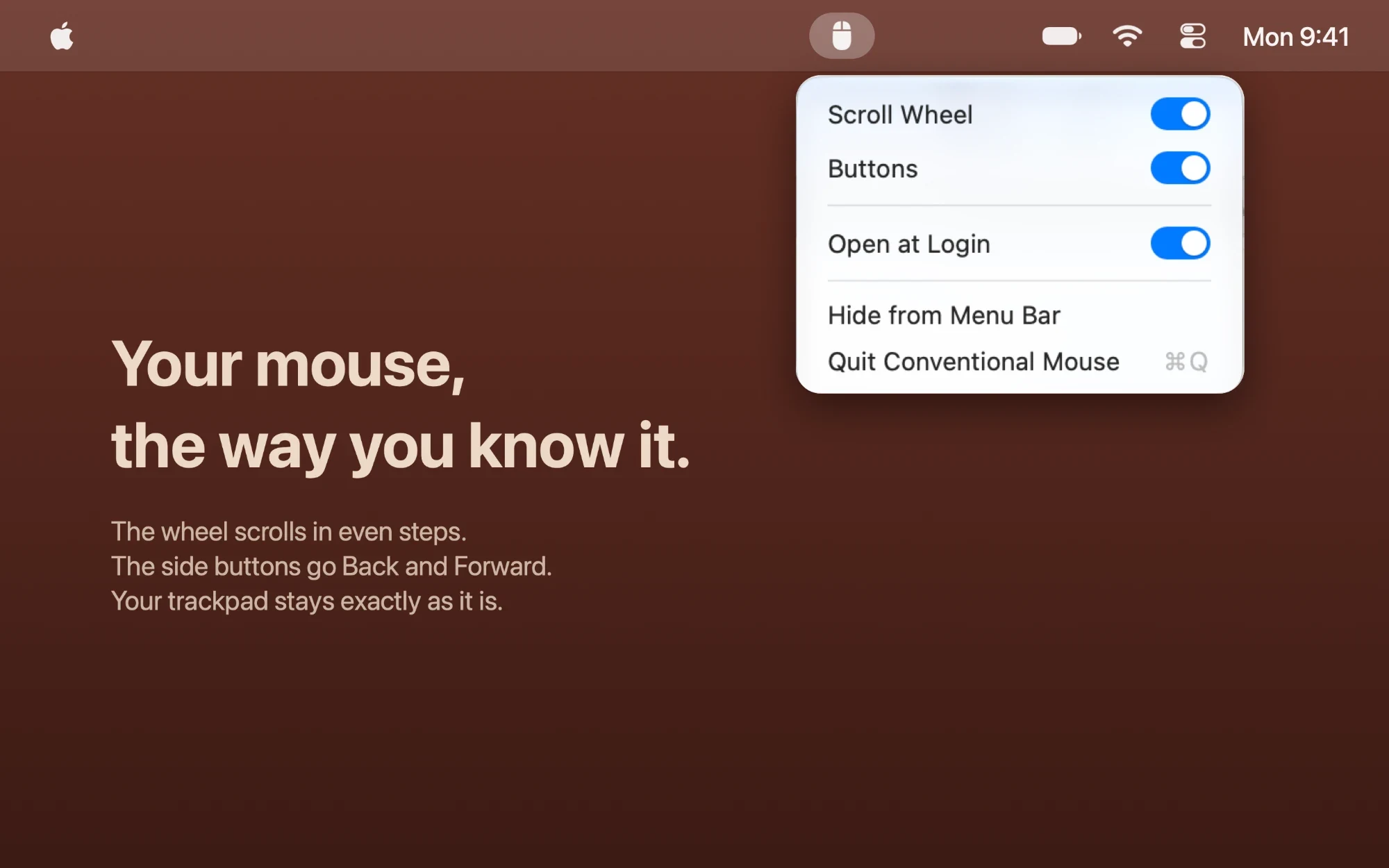
Two switches, and you're done.
The Mac App Store version keeps it simple: Scroll Wheel and Buttons, right in the menu bar, plus Open at Login. Flip a switch and the menu stays open, like the menus in Control Center.
Want the Windows pointer too? Conventional Mouse+ adds Motion and Precision.
Pick the one you need.
Changing the pointer itself needs a part of macOS that App Store apps can't use. So Motion and Precision are only in Conventional Mouse+, which you download here.
Conventional Mouse
Free, on the Mac App Store
- Scroll Wheel: a fixed 3 lines a notch, in the classic direction
- Buttons: Back and Forward on the side buttons
- Open at Login and Hide from Menu Bar
- Needs one permission: Accessibility
Coming soon to the Mac App Store.
Conventional Mouse+
Free download from this site
- Everything in Conventional Mouse
- Motion: the Windows pointer speed, set with the Tracking speed slider
- Precision: Windows' "Enhance pointer precision", or a constant speed
- Double-click speed in Windows' range, 200-900 ms
- Signed with Developer ID and notarized by Apple
- Needs two permissions: Accessibility and Input Monitoring
Version 1.0.0, 1.9 MB zip. macOS 14 Sonoma or later, Apple silicon and Intel.
After the download, drag Conventional Mouse+ from Downloads to the Applications folder, then open it.
How can we help?
Installing Conventional Mouse+
- Download the zip. Safari unzips it by itself; in other browsers, double-click the zip. Then drag Conventional Mouse+ from Downloads to the Applications folder.
- Open it. A mouse icon appears in the menu bar.
- macOS asks for two permissions. Allow both in System Settings > Privacy & Security.
- Click the menu bar icon to switch Motion, Precision, Scroll Wheel and Buttons on or off.
- Set the pointer speed in System Settings > Mouse > Tracking speed. The middle position is Windows' default speed.
Permissions
Accessibility (on macOS 27: Device Control and Data Access) lets the app change wheel scrolling and side-button clicks as they happen.
Input Monitoring, in Conventional Mouse+ only, lets it set your mouse's pointer speed and acceleration.
Nothing you type, click or move is recorded. While a permission is off, the menu shows Allow Accessibility Access… or Allow Input Monitoring…, which opens the right page in System Settings.
Frequently asked questions
Which Macs does it run on?
macOS 14 Sonoma or later, on Macs with Apple silicon or Intel. It works with any regular mouse with a notched wheel; side buttons are buttons 4 and 5.
Do I need both versions?
No. Conventional Mouse+ has everything Conventional Mouse has, plus Motion and Precision. Use Conventional Mouse from the Mac App Store if you only want the scroll wheel and the side buttons.
What happens when I turn it off or quit?
macOS's own settings come back at once. A switch turned off in the menu gives back that one part.
If the app is force-quit, its pointer settings stay until you open it again or reconnect the mouse. A normal Quit restores them.
Does it change my trackpad?
No. Trackpads, the Magic Mouse and other smooth-scrolling devices are never changed. Your trackpad keeps its own direction, Natural Scrolling included.
In which apps do the side buttons work?
In Safari, Finder, App Store, System Settings, Help, Music and TV the buttons press ⌘[ / ⌘], and in Xcode ⌃⌘← / ⌃⌘→. Chrome, Edge, Firefox, Brave, Arc, VS Code and JetBrains IDEs handle the buttons themselves and get the clicks unchanged.
In other apps the clicks pass through unchanged, so a button never shifts text in an editor. Back and Forward go to the active app, not to the window under the pointer.
How do I set the pointer speed?
With Motion on, use System Settings > Mouse > Tracking speed. Its middle position is Windows' default, 10 of 20, and each step left or right is about two Windows steps.
With Precision off the speed is constant, as Windows' rule gives it. That one speed is calculated, not measured on a PC.
I hid the icon. How do I get it back?
Open the app again from the Finder or Spotlight. If it opens at login, the icon may also show again after login.
How do I update Conventional Mouse+?
It has no built-in updater. New versions are published on this page: download the new zip and replace the app in the Applications folder. Conventional Mouse from the Mac App Store updates through the App Store.
Does it collect any data?
No. It has no network access, no analytics and no third-party code. Its settings stay on your Mac. See the Privacy Policy.
Questions or problems?
Write to us and please include your macOS version, your mouse model and what happened.
support@airyaudio.com