 Brightly

Brightly for WindowsEvery screen.
Its own brightness.
Brightly sets the brightness of every display right from the taskbar: the laptop screen, monitors over DDC/CI, and USB displays such as the Apple Studio Display. Scroll the mouse wheel over its tray icon, or use your keyboard's brightness keys.
In the Microsoft Store. Try it free for 7 days.
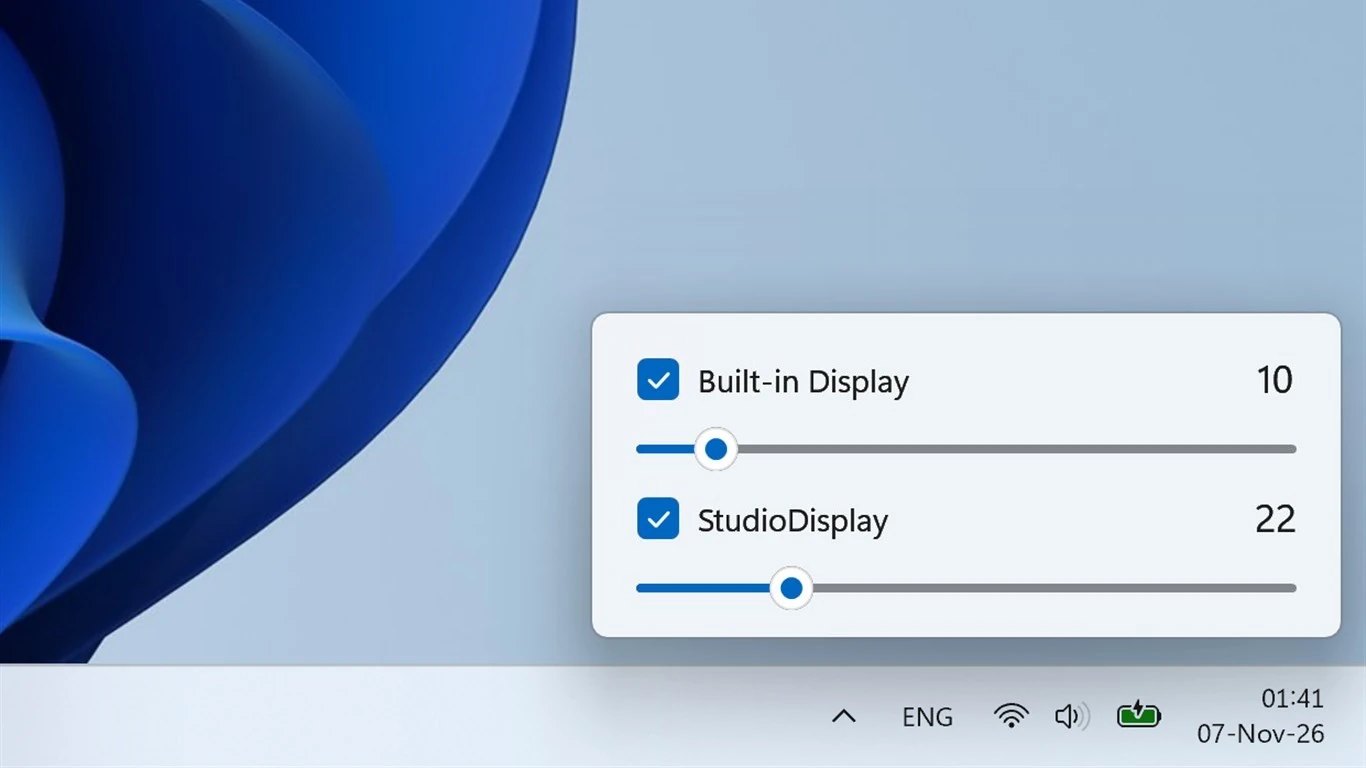
One place for all your screens.
Windows' own slider changes only the laptop screen. Brightly changes the monitors too, each on its own or all together.
Every display
The built-in laptop screen, external monitors over DDC/CI, and the Apple Studio Display and LG UltraFine over USB. Each display shows its real name.
Wheel over the tray icon
Point at Brightly's icon next to the clock and scroll the mouse wheel. The checked displays get brighter or darker, without opening anything.
Keys and shortcuts
On a desktop, your keyboard's brightness keys change the checked monitors in 2 % steps, and keep going while you hold them. Keyboard shortcuts, such as Ctrl+Alt+↑, work on any PC.
An indicator on each screen
While you change the brightness, each screen shows its own level. Next to Windows' own brightness bar, a small bubble shows the number.
Your monitors, your way
Tick the displays the wheel and the keys should change. Brightly reads each display's level every time, so a change made with the monitor's own buttons is kept.
Made for Windows 11
Native controls on Mica, light and dark, high contrast, the keyboard and Narrator. No account, no tracking, no ads.
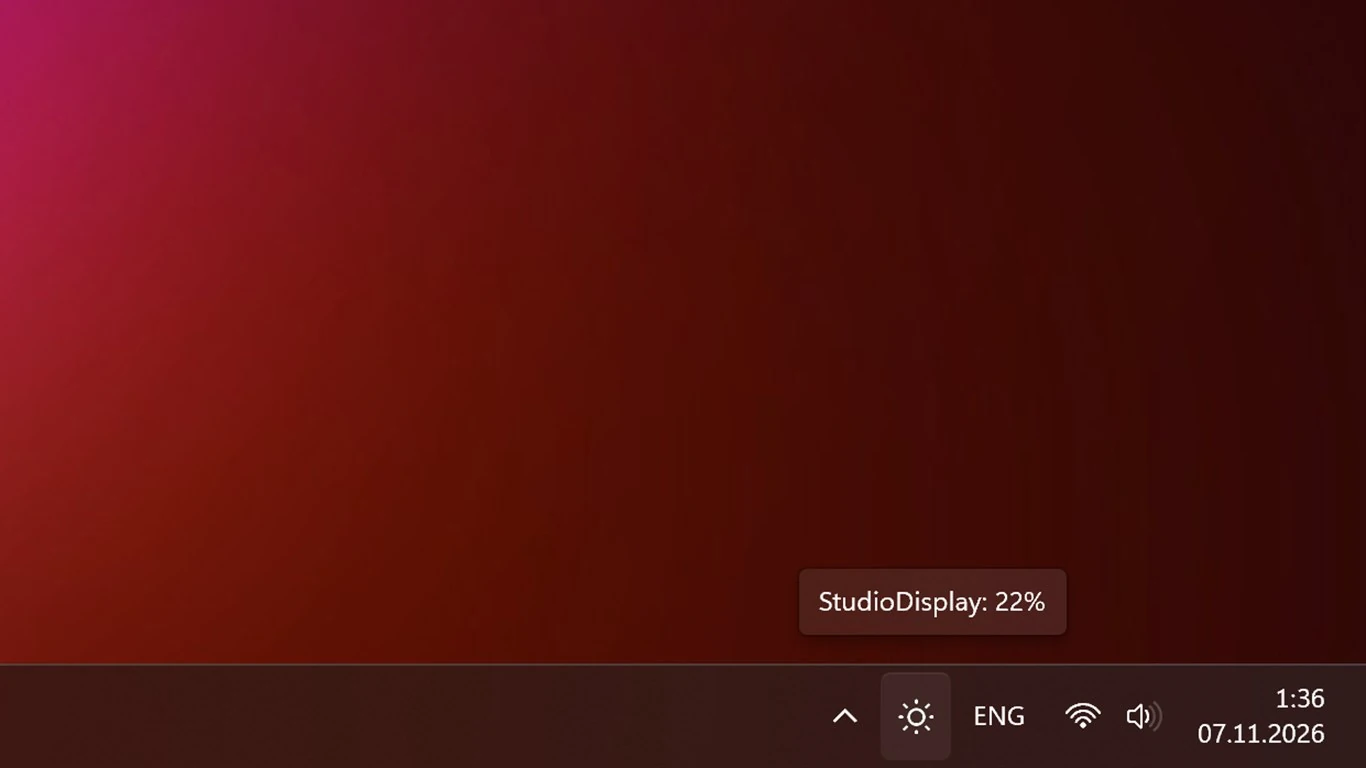
Scroll over the icon.
Brightly lives next to the clock, with an icon drawn like Windows' own. Point at it to see each display's level, and scroll the mouse wheel to change the checked displays.
Click it for the window with a slider for every display.
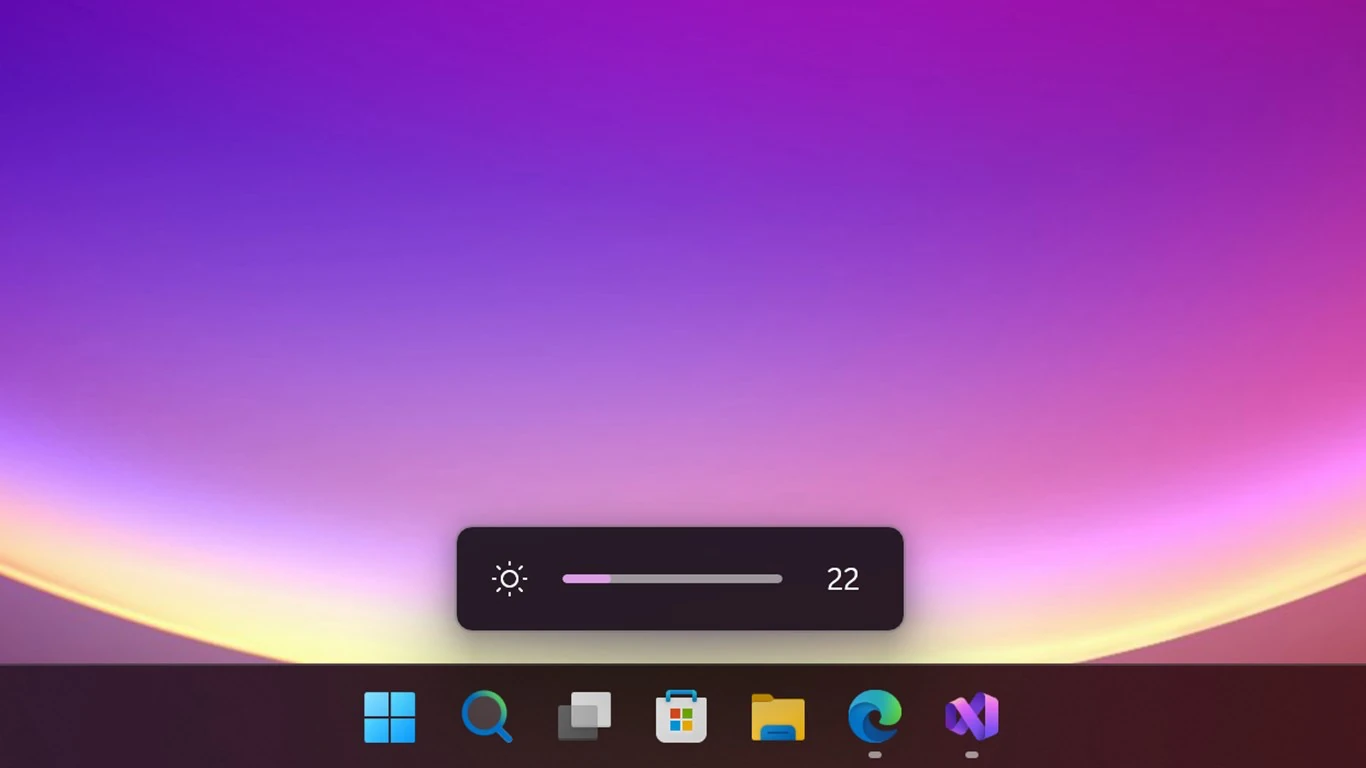
See the level on each screen.
While the brightness changes, each screen shows its own indicator, just above the taskbar. It goes away by itself.
With your keyboard's brightness keys, a small bubble with the number appears next to Windows' own brightness bar.
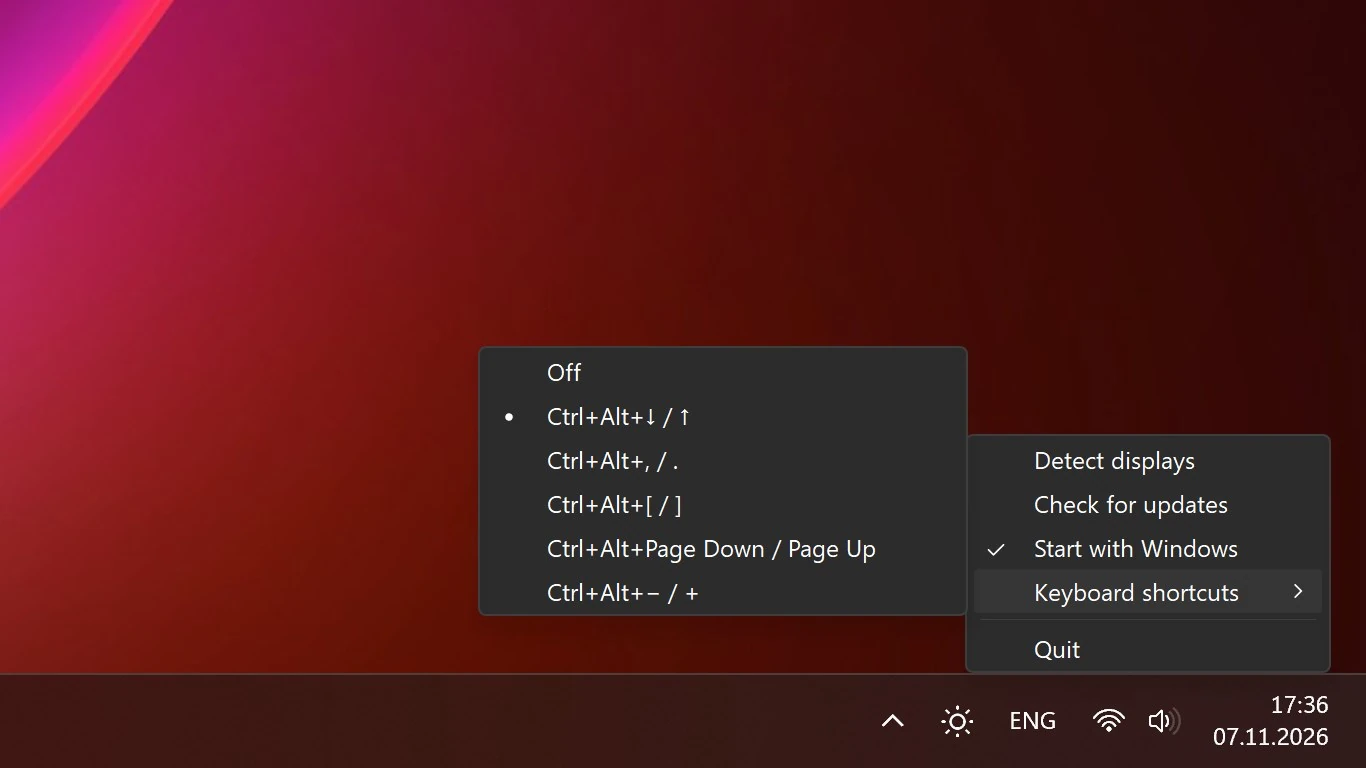
Pick your keys.
Right-click the icon and choose the shortcut that suits your keyboard: Ctrl+Alt with ↓ / ↑, , / ., [ / ], Page Down / Page Up or − / +, or turn them off.
The same menu has Detect displays, Check for updates and Start with Windows.
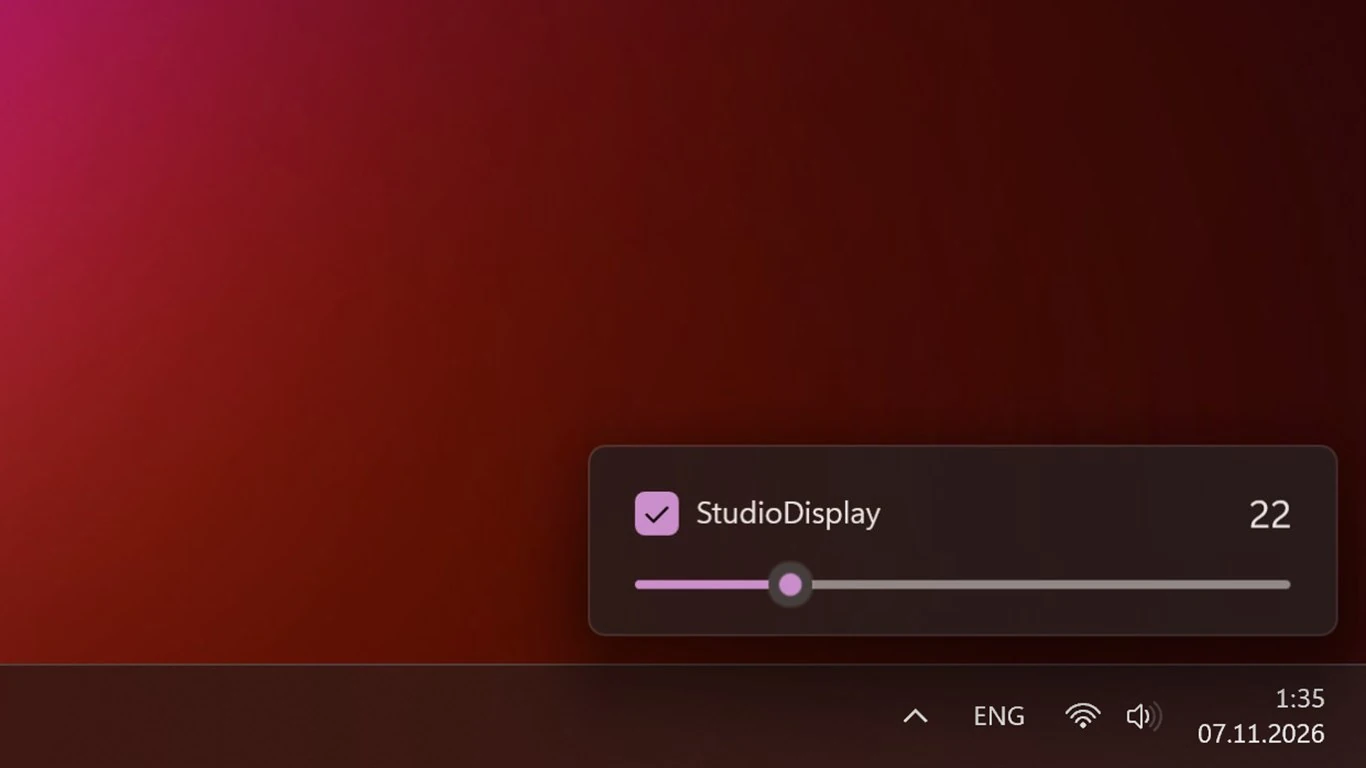
At home in Windows 11.
The window follows Windows: light or dark, your accent color, and a Mica background like Windows' own flyouts. It opens next to the clock and closes when you click elsewhere or press Esc.
Try it free for 7 days.
Brightly works fully during the trial. Then buy it once in the Microsoft Store, and it's yours, with updates from the Store.

In the Store, choose Free trial. When the trial ends, the window offers Buy in Microsoft Store, and the brightness comes back right after you buy, without a restart.
How can we help?
Getting started
- Install Brightly from the Microsoft Store and open it. Its icon appears in the tray, next to the clock.
- If you don't see it, click ^ next to the clock, and drag the icon onto the taskbar.
- Click the icon. Each display has a checkbox and a slider.
- Scroll the mouse wheel over the icon to change the checked displays.
- Right-click the icon for Start with Windows, keyboard shortcuts and Check for updates.
A monitor is missing
External monitors are changed over DDC/CI. If a monitor isn't in the window, turn on DDC/CI in the monitor's own menu.
A monitor that is slow to wake up appears by itself within about 15 seconds. You can also right-click the icon and choose Detect displays.
Some monitors, TVs and docks don't pass brightness through at all. Then their own buttons are the only way.
Frequently asked questions
Which displays does Brightly work with?
The built-in screen of a laptop, external monitors that support DDC/CI (most do, over HDMI, DisplayPort and USB-C), and the Apple Studio Display and LG UltraFine over USB.
Do the laptop's brightness keys still work?
Yes. They belong to the laptop screen, and Windows handles them as always. On a desktop without a built-in screen, the keyboard's brightness keys change the checked monitors instead.
Why doesn't the touchpad work over the tray icon?
Windows gives touchpad scrolling to the taskbar itself, so it never reaches Brightly's icon. Use the mouse wheel there, or click the icon and scroll over a slider: the touchpad works on the sliders.
Does Brightly change the brightness at start?
No. It never saves or restores brightness. It reads each display's level every time, so changes made with the monitor's own buttons stay. Only the checkboxes are remembered.
How do I start Brightly with Windows?
Right-click the tray icon and choose Start with Windows. If it was switched off in Windows, the item opens Settings > Apps > Startup, where you can switch it on again.
How do I update Brightly?
The Microsoft Store updates it by itself. To check now, right-click the tray icon and choose Check for updates.
Which PCs does it run on?
PCs with x64 and ARM64 processors. The Store gives each PC the right version.
How do I start over with the first run?
Open Settings > Apps > Installed apps > Brightly > Advanced options and choose Reset.
Does Brightly collect any data?
No. It has no account, no analytics and no ads. It talks only to your displays, and to the Microsoft Store for the licence and updates. See the Privacy Policy.
Questions or problems?
Write to us and please include your Windows version, your monitors and how they are connected, and what happened.
support@airyaudio.com